
The comprehensive guide to navigating ServiceHub and the expectations of our support services
SUPPORT CONTACT INFORMATION
Phone: +1 (414) 867-4948
Email: support@vivalociti.com
Website Form: https://vivalociti.lamacchiagroup.com/supportticket
HUBSPOT CALLING
Our support phone number is a HubSpot provided number, and all calls will come in through HubSpot. In order to receive in-app calls you will need to ensure the following:
- The support number is assigned to you
- "Ring in HubSpot browser" is selected for the Device ringing setting
- You have your Call Tab open
Number Assignment
A Super Admin or the person already assigned to the Support Line are the only ones who will have access to reassign the Support number. To assign the support number to yourself or another team member go to Settings > scroll down Tools on the left-hand side > click on Calling > find the Support Line under Phone Numbers > click Actions to open the dropdown options > click Edit > from here you'll be able to reassign the number to a different HubSpot user.
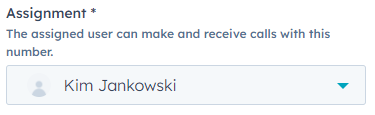
NOTE: To be able to be assigned a HubSpot number, you must be a HubSpot user.
Device Ringing
To receive inbound calls through HubSpot, you'll need to turn on Ring in HubSpot browser. To do so, go to Settings > click General under Your Preferences
Call Tab
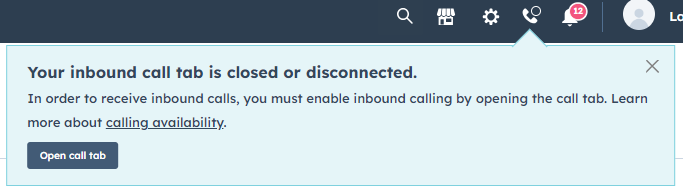
To open your Call Tab, click on the phone icon on the top right of the Navigation bar. It will prompt you that "Your inbound call tab is closed or disconnected." At the bottom of this prompt, it will have a button that says "Open call tab", click that.
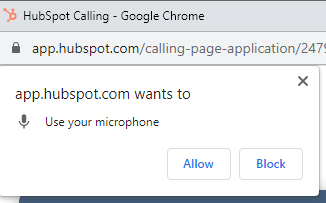
The Call Tab will open in a separate browser window and will prompt you that it wants to connect to your microphone. Hit "Allow" and you're all set!
Now that you have set up HubSpot Calling, you can now set up your Working hours and customize your Voicemail.
Working Hours
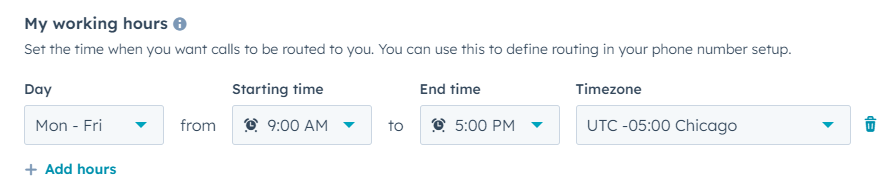
To update support's working hours, go to Settings > click General under Your Preferences > click Calling > click + Add hours under My working hours.
Voicemail
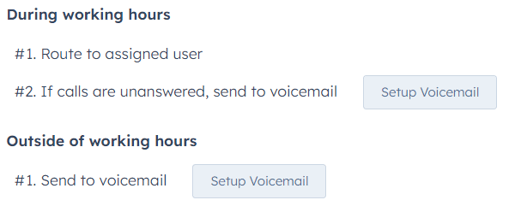
To update the customized voicemail for the Support line, go to Settings > click General under Your Preferences > click Calling > find the Support Line in your assigned phone numbers under HubSpot calling > click the dropdown Actions and then Edit > From here you can update your During working hours voicemail and your Outside of working hours voicemail.
Recorded Calls
Call recording is also turned on for all La Macchia Group HubSpot users with a HubSpot issued phone number. Every inbound call will automatically record. To view all recordings, click on Contacts > then in the drop down, select Calls.
NOTE: We are responsible for our compliance with call recording laws. HubSpot does not indemnify against legal claims that may arise from use of this feature. States that do not allow for recording without consent include: California, Delaware, Florida, Illinois, Maryland, Massachusetts, Montana, Nevada, New Hampshire, Pennsylvania, and Washington.
If call recording is enabled, inbound callers will hear a consent message before the call connects. The default consent message is "This call is being recorded for training and quality assurance. By staying on the line, you consent to being recorded."
Call Forwarding
To receive calls on an external phone line, set your Device ringing settings to "Forward to phone number".
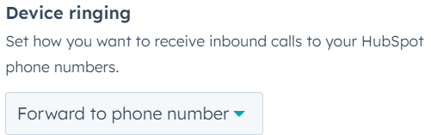
NOTE: Your forwarding set up will apply to all HubSpot issued numbers.
Logging External Calls
If a call is had with a client on a support agent's direct line and not through the support line, log the call in the ticket. To do so: go to the ticket that the call was regarding >
TICKETS
TICKET CREATION
Automatic Ticket Creation
Tickets will create automatically when someone fills out a Submit a Support Ticket form on our website at https://vivalociti.lamacchiagroup.com/supportticket. The following properties will be
Manual Ticket Creation
To manually create a ticket,
TICKET PROPERTIES
Ticket Name
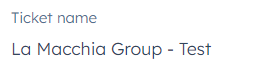
Please be sure to use the following naming convention for tickets: Company Name - Issue Summary.
Example: Air Academy FCU - Screens
As mentioned above, you will need to update the naming convention of tickets that were created automatically from a form or email submission.
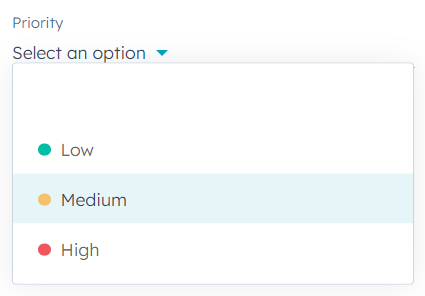
Priority
Here you can select the priority level of the ticket.
Ticket Level
Here is where you can select the level of the ticket.
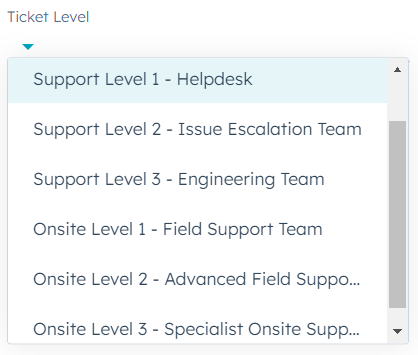
Support Level 1 - Helpdesk
This is the first point of contact for any user facing an issue. Staff in this level focus on providing immediate responses to basic troubleshooting and support. They assist with common issues like password resets, software installations, and general usage questions. Any problems that cannot be resolved at this stage are escalated to the next level.
Support Level 2 - Remote Technical Support
Handles escalated issues that can still be addressed remotely. They have more advanced skills and tools to remotely diagnose and solve technical problems. They also provided guided solutions to users for problems that require more complicated user actions.
Support Level 3 - Engineering Team
These are experts in remotely diagnosing and resolving complex issues. They're capable of handling complicated system problems, network errors, and other intricate issues that can be addressed remotely. They can collaborate with the On-Site Support teams for comprehensive troubleshooting.
Onsite Level 1 - Field Support Team
This is the first line of on-site support. They respond to issues that require an in-person presence, like setting up new devices, troubleshooting visible hardware issues, or situations where remote access is not possible.
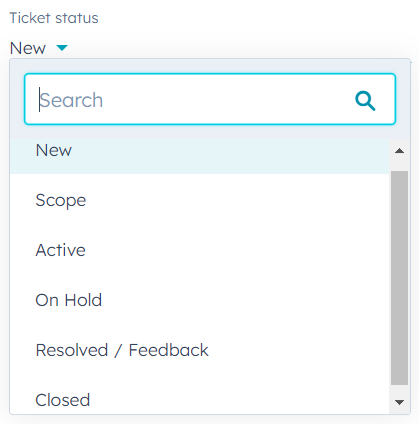
Ticket Status
Ticket Description

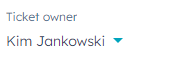
Ticket Owner
Support Technician

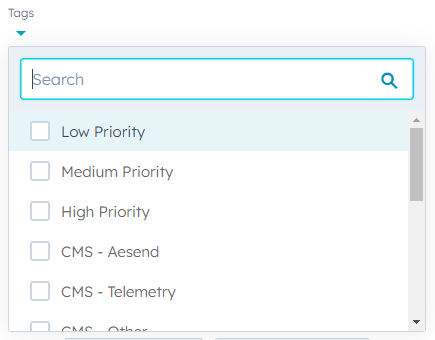
Tags
Job Number

Last Customer Reply Date

Create Date

Pipeline
Scheduled Onsite Date
